
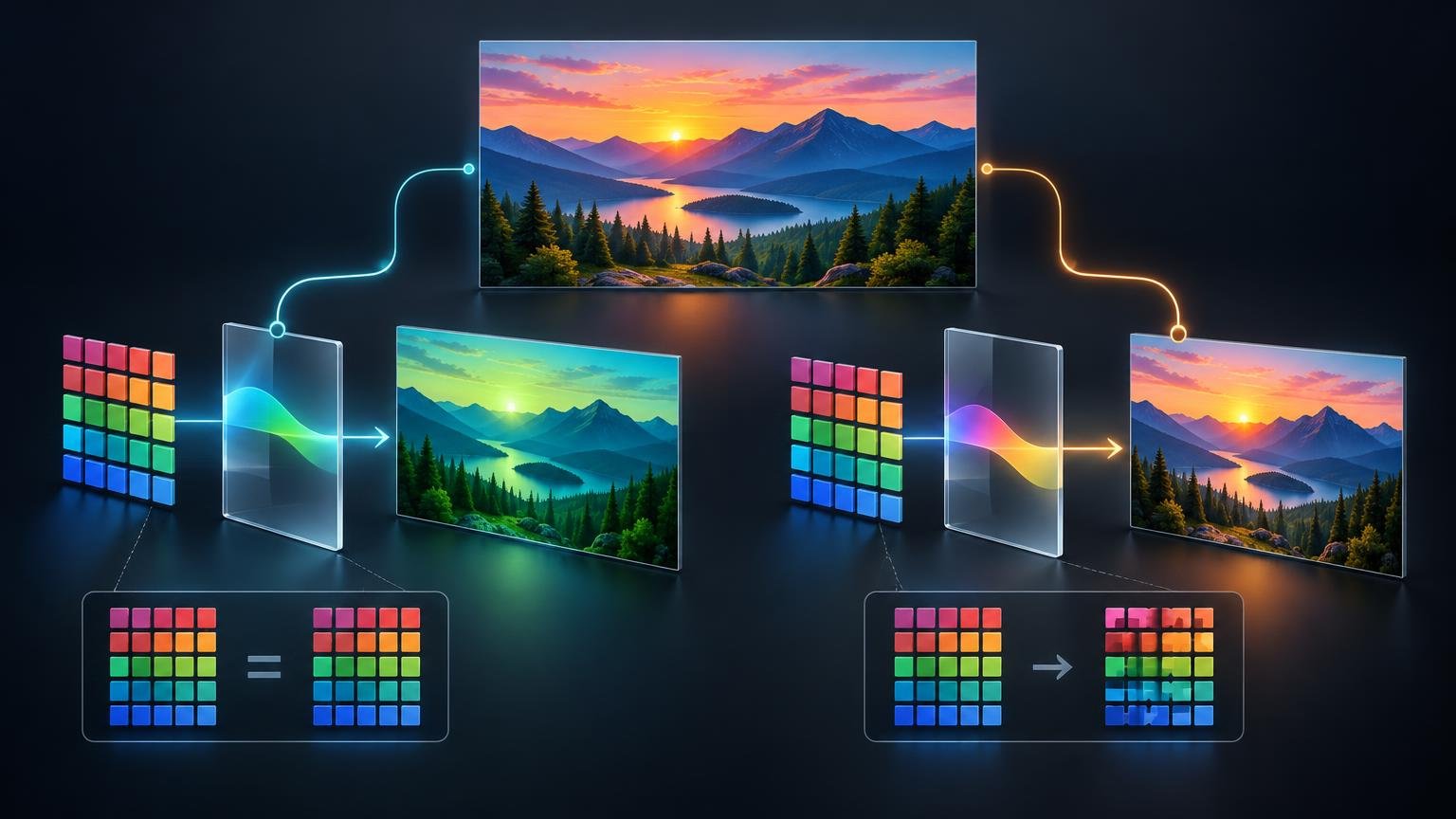
The assign profile vs convert profile decision comes down to one distinction: Assign Profile keeps the document’s existing RGB or CMYK values and changes what those values mean, while Convert to Profile recalculates the values for another color space in an effort to preserve the current appearance. Adobe documents the commands under Edit > Assign Profile and Edit > Convert to Profile.
Choose Convert to Profile when the document already has the correct source profile and you need a different delivery profile. Choose Assign Profile only when reliable evidence tells you that the current values have a missing or incorrect profile tag. If the intended source profile is unknown, investigate before doing either. Assigning a plausible profile is an interpretation, not a way to recover lost color information.
The three parts of a color-managed image
Most mistakes happen because pixel values, the document profile, and the display profile are treated as if they were the same thing. They perform different jobs.
Pixel values store the image data
An RGB pixel might contain values such as 180, 90, 40. Those numbers do not identify one exact visible color by themselves. Their color meaning depends on the RGB color space used to interpret them. The same principle applies to CMYK percentages: the numbers require an output-related profile or other defined printing condition to describe the intended color.
The document profile explains what the values mean
An embedded ICC profile identifies the color interpretation associated with the document data. A color-management system can then transform colors between source and destination encodings through the ICC Profile Connection Space. The International Color Consortium’s introduction to ICC profiles provides a useful overview of this profile-based architecture.
Embedding a profile does not rewrite every pixel. It supplies the information a color-managed application needs to interpret those pixels. That is why changing the assigned profile can alter the displayed image even though the values themselves remain untouched.
The display profile describes the monitor
The monitor profile is separate from the image profile. A color-managed application uses the document profile to understand the file and the display profile to produce suitable output for the monitor. Calibration and profiling software can create and install a display ICC profile, and a display’s behavior can drift over time.
This means an Assign or Convert comparison assumes that Photoshop is using a functioning display-management setup. A bad monitor profile, excessive display brightness, or an unmanaged viewer can make a sound document conversion appear wrong. If print matching is the larger problem, also check monitor brightness for reliable print matching before altering the master file.
Assign Profile changes interpretation, not values
Assign Profile attaches a profile interpretation to the values already in the document. Adobe states that this operation does not change the document’s color values.
Return to the hypothetical RGB pixel with values 180, 90, 40. Assigning a different RGB profile leaves it at 180, 90, 40, but Photoshop now interprets that triplet within a different color space. Its displayed color can therefore shift, sometimes visibly. The shift is not a newly introduced set of pixel values; it is the consequence of changing their meaning.
That makes assignment appropriate for a narrow but important task: correcting or supplying the description of existing data. For example, a creator may confirm that an untagged export came from a documented sRGB workflow. Assigning sRGB would then restore the missing interpretation. It would not convert the numbers from another space into sRGB.
Assignment is dangerous when used as guesswork. If a file merely looks dull, oversaturated, dark, or strange, those symptoms do not identify its source profile. Assigning profiles until one looks attractive may produce a pleasing edit, but it does not establish which color space originally gave the numbers their intended meaning.
Convert to Profile changes values to preserve appearance
Convert to Profile starts from the current, correctly interpreted source color and transforms it into a selected destination color space. Adobe describes the operation as changing the document’s color values while seeking to preserve its appearance.
After conversion, the hypothetical pixel may no longer read 180, 90, 40. Its new values represent approximately the same color in the destination space. The precise result depends on the source and destination profiles, conversion engine, rendering intent, Black Point Compensation setting, and whether the original color falls inside the destination gamut.
Preserving appearance is a goal rather than a promise of mathematical identity. A destination profile cannot reproduce colors outside its gamut. Rendering intent controls how the conversion handles those limits, while Black Point Compensation affects how source and destination black points are related. For a repeatable workflow, record both settings rather than reporting only the destination profile.
Conversion is the normal choice when a correctly tagged Adobe RGB document must become sRGB for a defined web workflow, or when a known RGB master must be converted to a printer-supplied output profile. The source must be correct first. Converting from an incorrectly assigned profile faithfully transforms the wrong interpretation.
A controlled duplicate-file workflow in Photoshop
The following workflow uses the menu names documented for Adobe Photoshop desktop 27.11. Adobe generally treats manual profile changes as advanced operations; Photoshop ordinarily uses its Color Settings policies to handle profiles. Keep the original file closed or untouched, and perform the comparison on duplicates.
- Duplicate the source file at the operating-system level or use File > Save a Copy before changing profiles. Give the copy a clear name such as filename-profile-test.psd.
- Open the test copy and inspect the current document profile. In Photoshop, the status display at the bottom of the document window can be configured to show Document Profile. Also note whether Photoshop displayed a missing-profile or profile-mismatch warning when the file opened.
- Confirm the file’s provenance. Check the creator’s instructions, camera or scanner settings, originating application, export preset, earlier versions, related files, and documented production workflow. Do not infer the source profile solely from appearance.
- Create two additional copies if you need to demonstrate both operations. Label one assignment-test and the other conversion-test. This prevents an assignment from contaminating the starting point for the conversion comparison.
- On the assignment copy, choose Edit > Assign Profile. Select the candidate source profile only when evidence supports it. Observe the appearance and verify that sampled RGB or CMYK values remain unchanged.
- On the conversion copy, start again from the correctly tagged source. Choose Edit > Convert to Profile, select the required destination profile, and document the conversion engine, rendering intent, and Black Point Compensation setting. Compare the appearance and sampled values with the source.
- Save the resulting delivery copy in a format that supports the required workflow, and embed the appropriate profile when the format and recipient support it. Adobe lists formats including PSD, TIFF, JPEG, PDF, PSB and EPS among those that can embed profiles when saving.
A practical decision guide
| File condition | Appropriate action | Reason |
|---|---|---|
| Correct known source profile; a different delivery profile is required | Convert to Profile | The source colors are already defined, so the values can be transformed for the destination while appearance is preserved as closely as possible. |
| Profile is missing, but reliable workflow evidence identifies the intended source | Assign Profile | The existing values need their missing interpretation restored before any later conversion. |
| Attached profile is wrong, and reliable evidence identifies the intended source | Assign the correct source profile, then convert only if needed | Correct the interpretation first; a destination conversion made from the wrong source interpretation compounds the error. |
| Source profile is unknown | Investigate and preserve the original | A visual guess cannot establish what the numbers were intended to mean. |
| You only need to preview a printer, ink and paper condition | Soft proof | A preview does not require permanently converting the working master. |
For the final case, use Photoshop’s proofing tools and the provider’s output profile rather than repeatedly converting the master. Soft proofing before ordering a print explains how a color-managed simulation differs from a permanent profile conversion.
What to do with an untagged or wrongly tagged file
An untagged file contains values without enough embedded information to establish their intended color meaning. It may have been created in sRGB, Adobe RGB, Display P3, a scanner space, or another working space. The absence of a tag does not make sRGB automatically correct.
Start with provenance. Ask who created the file, what device or application produced it, which export preset was used, and whether an earlier tagged copy exists. Look for associated raw files, layered masters, scanner documentation, job specifications, or other images exported in the same batch. A consistent, documented workflow is stronger evidence than visual resemblance.
If evidence supports one source profile, assign it to a duplicate and evaluate the result on a profiled display. If several candidates remain possible, preserve that uncertainty. You can make a deliberate editorial color correction for the current job, but you should not describe the chosen assignment as restoration of the unknown original color.
The same caution applies to a suspicious embedded profile. A profile mismatch can come from incorrect assignment, a faulty export, an application policy, or an intentional conversion. Reassign only after establishing that the tag is wrong. If the profile is correct but unsuitable for delivery, convert instead.
Prepare the delivery copy for its actual destination
Do not convert to CMYK merely because a file will eventually be printed. Ask the printer or production provider for the required file mode, ICC profile, proofing condition, and profile-embedding policy. Different presses, inks, papers, and process controls can require different output descriptions, so there is no responsible generic CMYK profile for every print job.
If the provider requests RGB, keep an appropriately tagged RGB delivery file. If it supplies a specific output profile and requests conversion, convert a duplicate from the correct source and retain the wider-gamut master. For broader decisions beyond profile handling, Printiverse’s print-production coverage is a useful next step.
A profile conversion also does not replace soft proofing. Conversion prepares values for a destination; proofing helps you inspect likely compromises before committing to that output. Saturated colors, deep shadows, and subtle gradients deserve particular attention when the destination gamut is more limited. The related comparison of sRGB, Adobe RGB and Display P3 can help when choosing a working or delivery space rather than an output profile.
The safest rule to remember
Assign describes existing numbers. Convert transforms correctly described numbers for a new destination. That rule resolves most assign profile vs convert profile decisions.
Before clicking either command, identify the file’s current profile, decide whether that profile correctly describes the data, and define the actual destination requirement. Preserve the original, test on duplicates, document conversion settings, and embed the final profile where appropriate. When the source interpretation is unknown, investigation is safer than a confident guess—and assignment should never be presented as recovery of color information the file no longer contains.