
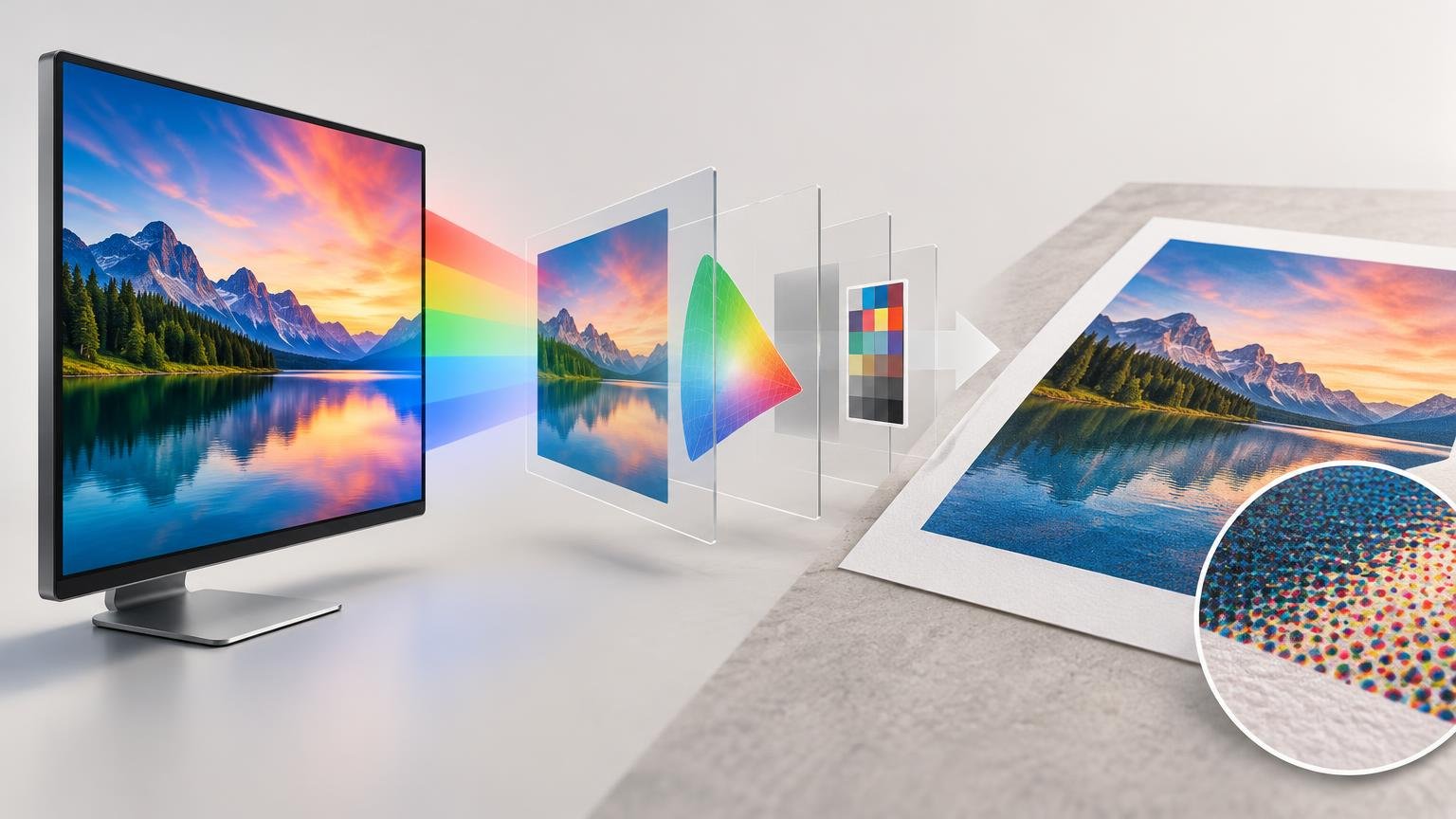
Use RGB for screen-based work and, in most cases, for your editable master file. Use CMYK when a specific print process requires CMYK data or when you must control process-ink values. Do not convert merely because the job will eventually be printed. The printer’s required profile, PDF standard and file-delivery instructions should determine whether conversion is necessary.
That last point is what turns the familiar RGB-versus-CMYK debate into a useful production decision. RGB and CMYK describe ways of encoding color, but neither label identifies exactly what color a device will display or print. For predictable results, you also need an embedded source profile, a defined destination profile and color-managed conversion between them. The International Color Consortium’s color-management guidance explains how ICC profiles connect device values to a device-independent reference space.
The practical difference between RGB and CMYK
RGB is an additive color model. Displays create color with red, green and blue light; increasing all three channels moves toward white. CMYK is a subtractive model used in process printing. Cyan, magenta, yellow and black inks absorb portions of the light falling on paper, and the remaining reflected light produces the color you see. Black ink supports practical shadow depth, detail and ink control in four-color printing.
| If the file is mainly for | Start with | Why |
|---|---|---|
| Websites, email, social media or presentations | RGB, usually sRGB for broad compatibility | The image will be displayed with emitted light, and sRGB remains the safest general-purpose delivery space for online documents. |
| Photography, compositing or multi-output design | A profiled RGB master | RGB preserves editing flexibility and can be converted separately for different screens, printers and press conditions. |
| A commercial printer requesting a named CMYK profile or CMYK PDF | The requested CMYK condition | The conversion must target the actual printing requirement rather than an arbitrary CMYK space. |
| Artwork with controlled process-ink percentages | CMYK where those values must be preserved | Unnecessary conversion can reseparate colors and change intentional ink builds. |
| A printer that explicitly requests profiled RGB | RGB with the requested embedded profile | The printer’s workflow may perform the destination conversion more appropriately than a generic conversion made earlier. |
For online-only documents, Adobe recommends sRGB. That does not guarantee identical appearance everywhere: display gamut, brightness, calibration, browser behavior and viewing conditions still vary. If you are deciding among common RGB spaces, see sRGB, Adobe RGB and Display P3 compared.
RGB and CMYK labels are not enough
An RGB value such as 220, 40, 80 is incomplete without knowing which RGB color space defines it. The same triplet can represent different measured colors in sRGB, Adobe RGB or Display P3. A profile supplies that missing interpretation.
CMYK has the same issue, with an additional production complication. There is no single universal CMYK gamut. The printable result depends on the press or printer, ink set, substrate, screening and defined printing condition. A CMYK conversion intended for one coated-paper press condition is not automatically appropriate for an uncoated sheet, a digital printer or another production system.
This is why “convert it to CMYK” is incomplete advice. Converting to an arbitrary CMYK working space may make the software report four channels, but it does not establish a reliable relationship to the final output. The useful question is: Which CMYK profile or printing condition does the producer require?
When staying in RGB is the better choice
Keep the master in RGB when the image will serve several destinations, when substantial editing remains, or when the printer accepts profiled RGB. The ICC recommends an RGB workflow for many multi-output situations, and notes that many printer interfaces accept RGB data and perform their own conversion. Sending preconverted CMYK to a system that expects RGB can reduce rather than improve control. ICC guidance on RGB workflows
An RGB master also lets you make separate output decisions. One derivative might be an sRGB JPEG for the web. Another might be converted through a specific press profile. A third could go to a photographic printer that expects RGB input. The destination changes, but the editable source remains intact.
Conversion from RGB to CMYK permanently changes the channel values and remaps colors that the destination cannot reproduce. Repeated movement between RGB and CMYK can add rounding and data loss, so conversion should be deliberate and generally performed once for a defined output. Saving the original RGB document protects you from treating one output-specific conversion as the universal master.
When CMYK actually matters
CMYK matters when the production specification calls for it. A commercial printer may require a CMYK file using a named ICC profile, a particular PDF/X standard, or a PDF with color conversion handled according to supplied export settings. Follow those instructions rather than a generic rule. Adobe’s commercial printing workflow guidance likewise recommends determining whether the printer accepts RGB files or requires CMYK and obtaining the appropriate profile.
CMYK also matters when ink percentages themselves carry production intent. A simple black element may be designed as black ink only, while another dark area may use a multi-ink build. Unmanaged conversion can reseparate those colors, turning a controlled black into a different combination of inks. Supplied CMYK logos, packaging elements and other production-ready artwork therefore should not be casually converted to RGB and back.
If you are still deciding what kind of custom-printed product the artwork will become, Printiverse covers print products and production topics. Once the product and producer are selected, request that producer’s current color and export specifications before preparing the final file.
A reliable RGB-to-print workflow
A controlled workflow separates the master file from the delivery file. That distinction prevents premature conversion while still giving production the format it needs.
- Edit and archive the master in an appropriate RGB space with its profile embedded. Avoid assigning a different profile merely to change appearance; assignment changes how existing numbers are interpreted.
- Calibrate and profile the display. A profile describes the monitor’s behavior, while calibration brings it to chosen operating targets. Color-critical displays should be recalibrated periodically because their behavior can drift over time.
- Ask the printer for its preferred file format, accepted color modes, required ICC profile and PDF preset. Also ask whether it wants you to convert or whether its own workflow performs the conversion.
- Install the correct output profile and soft-proof the RGB master. A soft proof simulates the selected output condition without forcing you to abandon the RGB master. Gamut warnings can identify colors outside the destination gamut.
- Adjust a proof-specific copy if important colors need refinement. Concentrate on brand colors, saturated blues and greens, deep shadows, neutral grays and other visually critical areas rather than trying to eliminate every gamut warning.
- Export one delivery file according to the producer’s instructions. Embed the requested profile or output intent, preserve required CMYK values and avoid another conversion after export.
- Approve the right kind of proof. A layout proof can confirm content and placement, but color approval requires a proof tied to a defined output condition and controlled viewing assumptions.
For the software steps and interpretation of gamut warnings, use this guide to soft proofing before ordering a print. Soft proofing is a forecast, not a way to make paper emit light. It helps you judge how the destination will compress or shift color so you can choose the compromise before production.
Why a correct conversion can still look wrong
A technically valid RGB-to-CMYK conversion cannot compensate for an excessively bright, unprofiled display. If the monitor is much brighter than the illuminated print, the print may appear dark even when the file and conversion are behaving correctly. Start by calibrating the monitor for photo and print work and evaluate the physical proof under suitable, consistent light.
Soft-proof reliability depends on the monitor, its current profile, the output profile and the surrounding viewing environment. ICC guidance recommends periodic calibration for color-critical work because display behavior changes over time. Paper color, surface and viewing light then affect the appearance of the final reflective print in ways a luminous display can only simulate.
The decision to make before exporting
Choose RGB when the destination is a screen, when you are retaining an editable master, or when the print provider explicitly accepts profiled RGB. Choose CMYK when a named printing condition requires it or when controlled process-ink values must survive into production.
Most importantly, do not treat “CMYK” as a print-quality setting. A generic CMYK conversion can be less reliable than a properly profiled RGB file delivered to a color-managed print workflow. Identify the destination first, obtain its specification, soft-proof against that condition and convert only when the workflow calls for it. That sequence gives the screen, file, proof and final output the best chance of agreeing.
Frequently Asked Questions
Can I send an RGB file to a commercial printer?
Yes, if the printer accepts profiled RGB. Some print workflows perform the destination conversion themselves, so follow the provider’s current profile, PDF and delivery requirements rather than converting automatically.
Does converting an image to CMYK improve print quality?
Not by itself. A generic CMYK conversion can be less reliable than supplying a properly profiled RGB file to a color-managed workflow because CMYK output depends on the specific press, inks, substrate and printing condition.
Which RGB color space should I use for online images?
For online-only delivery, sRGB is the safest general choice. It improves compatibility but cannot make varied displays, brightness settings and viewing conditions look identical.
Should existing CMYK logos or controlled black elements be converted to RGB?
Not casually. When CMYK percentages carry production intent, converting to RGB and back can reseparate the colors and change an intentional ink build. Preserve those values when the production specification requires them.
Why can a correctly converted print still look too dark?
The display may be much brighter than the illuminated print. Calibrate and profile the monitor, soft-proof with the correct output profile, and judge the physical proof under suitable, consistent light.
References
- ICC Frequently asked questions — International Color Consortium
- Color modes in Photoshop | Photoshop
- Commercial printing workflows in Photoshop | Photoshop
- Color models and color spaces: RGB, CMYK, HSB, Lab
- Color-managing documents, Adobe Acrobat | Adobe Acrobat
- Understanding Photoshop color modes | Photoshop
- White Paper 23
- Convert images to different color modes in Photoshop | Photoshop
- Color-managing imported images in Photoshop | Photoshop
- www.color.org